The ZTE H1600 is a WiFi 6 router commonly supplied by providers such as Superloop and Exetel. These units were typically supplied preconfigured for PPPoE. PPPoE will not work on our NBN or Opticomm services, so if your router has been factory reset, sourced second-hand, or is still using its original provider settings, you will need to reconfigure it to use DHCP / IPoE (Dynamic IP) instead.
This guide applies to both NBN and Opticomm services delivered via an ethernet port (this typically includes FTTP, FTTC, FW, HFC, FTTR).
Opening the settings for your ZTE H1600
The following steps cover connecting the router and accessing its settings before proceeding with the internet setup.
-
Connect your ZTE H1600 to power and switch it on.
-
For most NBN and Opticomm services, connect an Ethernet cable from the WAN port of the ZTE H1600 to the active network port on your NBN or Opticomm device or wall outlet.
-
-
On a computer, tablet, or phone, connect to the router using WiFi or a LAN cable. The default WiFi name and password are usually printed on the label attached to the router.
-
Open a web browser and go to
192.168.20.1. -
Log in using the router admin username and password shown on the label. The username is always "admin", and the password is typically either
adminorHaikui_V2. -
You will now be presented with the main dashboard of the router.
Configuring your ZTE H1600 using DHCP / IPoE
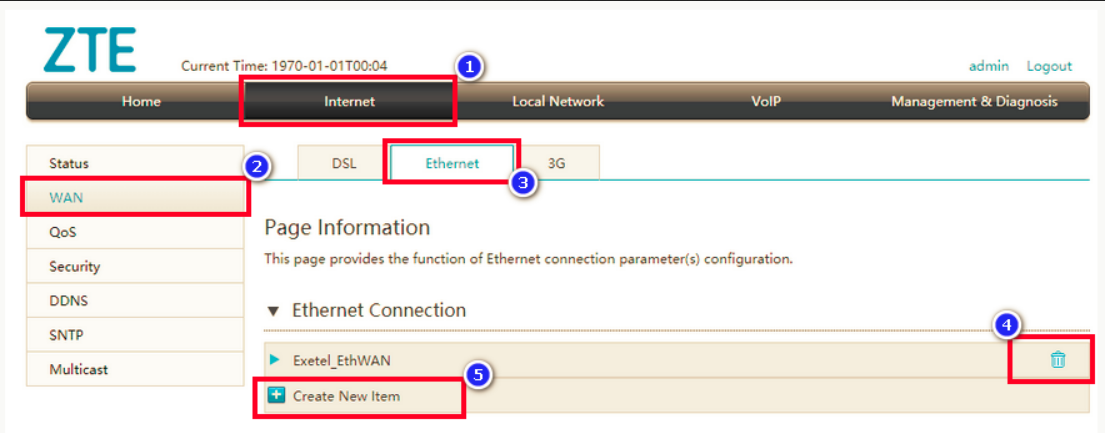
Example ZTE H1600 interface showing the WAN Settings page.
If the router is still using its original provider configuration, it may already contain a preconfigured internet profile. However, these profiles were commonly set to PPPoE, which is not compatible with our services. In that case, follow the steps below to reconfigure the router to use DHCP / IPoE.
-
After logging in, open the router’s Internet settings.
-
Now on the left side, press WAN.
- And then in the top tab, press Ethernet.
-
Review any existing WAN or internet connection profiles.
-
If there is an existing profile configured, delete it.
-
-
Create or edit the WAN / E-WAN connection.
-
Important: for the connection settings, ensure the router is configured as follows:
- Connection Name: EthWAN
-
Link Type: IP
-
IP Type: DHCP
This is the correct DHCP / IPoE setup for our NBN and Opticomm services. Do not select PPPoE.
-
Leave all other settings as is.
-
Save or apply the settings, then allow a few minutes for the router to connect to the internet.
Troubleshooting
-
If the router does not connect, first confirm that the Ethernet cable is connected to the WAN port on the router and the correct port on your NBN or Opticomm device.
-
If the router was originally supplied by another provider, it may still be configured for PPPoE, which will not work on our services.
-
Delete any old PPPoE profile and recreate the connection using DHCP / Dynamic IP / IPoE.
-
If you still cannot connect, factory reset the router only if you are prepared to re-enter all settings manually.